
Prolazo Connect
One desktop app for your BMW or MINI — remote coding, Android Auto / CarPlay retrofits, fault-code diagnostics and live remote support. Download it, sign in with your email, and we take it from there.
Install Prolazo Connect on your Windows laptop. When your car needs work, plug in the ENET cable and our team can scan, code and retrofit it remotely — you just watch.
What you can do with it
Remote coding
Our coder connects to your car over the cable and enables factory features — no garage visit, no risky self-coding.
Android Auto & CarPlay
Retrofit wireless Android Auto or CarPlay onto supported head units, installed and verified remotely.
Fault-code diagnostics
Read and clear fault codes from every module, with plain-language descriptions — then see exactly what to fix.
Live remote support
Share your screen in one click so we can guide you or take over — the secure connection is built in.
How to get started
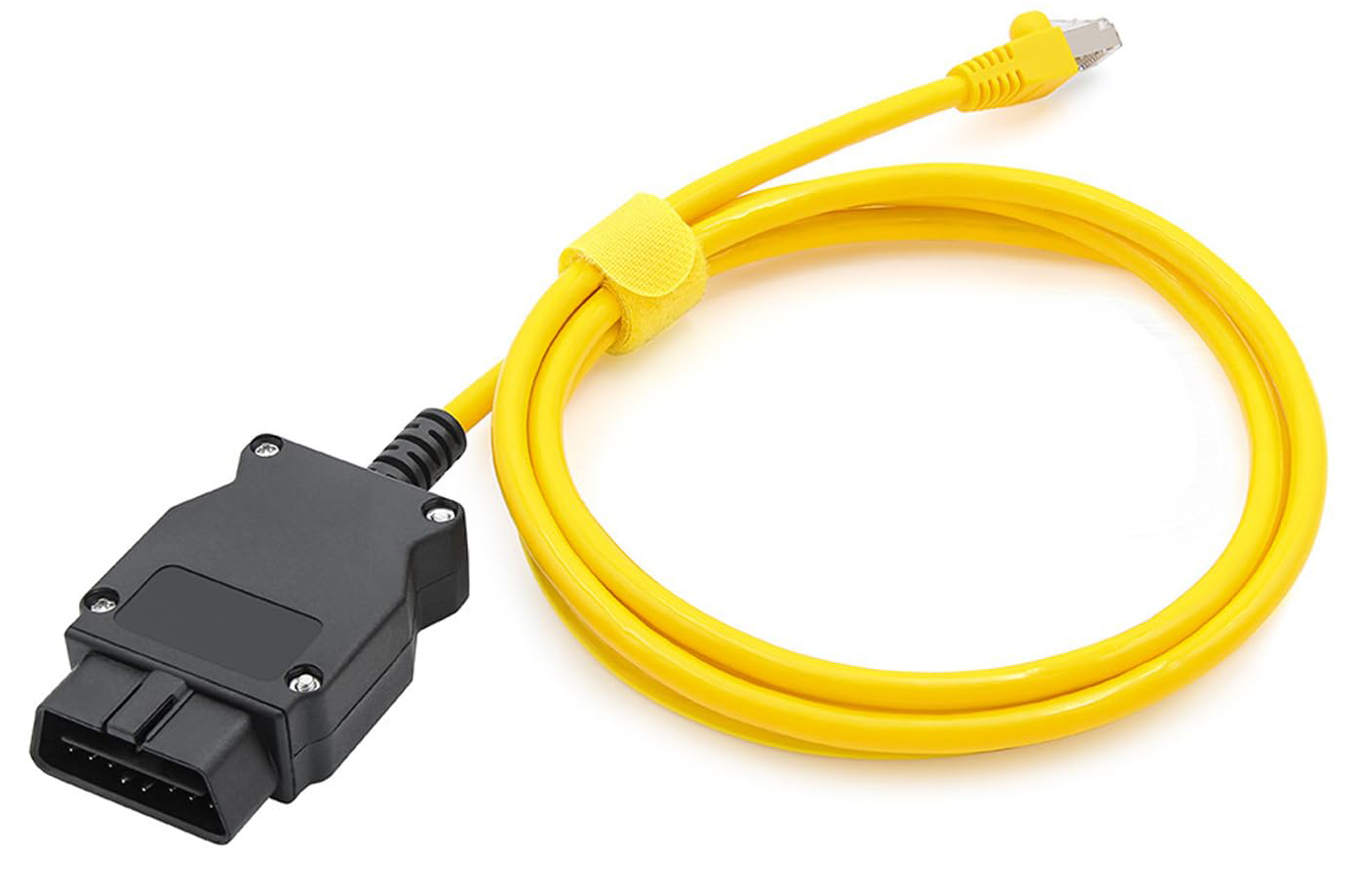
One-time setup. For coding and retrofits you’ll need a BMW ENET cable (OBD‑II to Ethernet) — look for the “BMW ENET cable” on any popular marketplace like Amazon, eBay or AliExpress. We recommend the yellow one. Remote support alone needs no cable.
Windows
- Download Prolazo Connect and run the installer (it starts with Windows afterwards).
- Open Prolazo Connect, enter your emailand we’ll send you a login code — type it in and you’re in. First time? It creates your account.
- For coding or a scan, plug the ENET cable into the car’s OBD port and your laptop; turn the ignition ON.
- Message Prolazo for your car, then leave the app open — we connect and do the rest.
Mac
A Mac app is coming soon. For now, use a Windows laptop (or Boot Camp / a Windows VM with the ENET adapter passed through).